MyAnimeList Attributes
Configuring MyAnimeList is optional but is required for MyAnimeList based collections and operations to function.
The mal attribute is found at the root of the config file. Some of these are filled in by you, others are filled in by MyAnimeList:
Kometa will keep these credentials up-to-date; they expire periodically and need to be renewed.
Warning
Your config file needs to be writable by Kometa, since the authentication attribute gets updated when the credentials are renewed.
If the config file is not writable, the MyAnimeList renewal will eventually fail.
mal:
  client_id: abc123def456ghi789
  client_secret: zyx987wvu564tsr321
  localhost_url: https://localhost:5000/somestuff
  authorization:
    access_token: k0met4t0k3nh3r3
    token_type: Bearer
    expires_in: 192837465
    refresh_token: r3fr3sht0k3ng0e5h3r3
| Attribute | Description | Allowed Values (default in bold) | Required |
|---|---|---|---|
client_id |
MyAnimeList application client ID. | Any valid ID or leave blank | |
client_secret |
MyAnimeList application client secret. | Any valid secret or leave blank | |
localhost_url |
Redirect URL used for authorization flow. | Valid localhost URL or leave blank |
All other attributes will be filled in by Kometa as part of the authentication process
Authenticating outside Kometa
The simplest and preferred way to authenticate against MyAnimeList is the Kometa Utilities.
If you want to do this manually, read on.
Important Note on "Authentication Process":
The MyAnimeList authentication process is interactive; Kometa will display a URL in the console output and then wait for you to visit that URL in order to grant access and then paste in some additional information. In order for this to happen you need to run Kometa in an interactive mode, which can be fussy in some contexts (e.g., running Kometa in a Docker container on a NAS). For this reason, it is far simpler to use the form down below to perform these steps; it does all the same steps, but takes them out of the Kometa script execution. The form will produce a complete authentication block as shown above ready for you to copy-paste into your config.yml.
MyAnimeList Authentication
You can complete the MyAnimeList authentication interactively during the config run, or you can complete it outside of Kometa and paste in the resulting mal attribute.
To connect to MyAnimeList.net you must create a MyAnimeList application and supply Kometa the client id and client secret provided, please do the following:
Tip
MyAnimeList may have specific requirements for any value shown below, which may change over time, so refer to the form at MyAnimeList in the event that any of these example values do not work.
- Click here to create a MyAnimeList API application.
- Enter an
App Namefor the application; for example,Kometa. This name is arbitrary and can be whatever you wish as long as it meets MyAnimeList requirements. - Select
webforApp Type. - Enter an
App Descriptionfor the application; for example,Kometa manages metadata and collections on Plex servers. This description is arbitrary and can be whatever you wish as long as it meets MyAnimeList requirements. - Enter
http://localhost/forApp Redirect URL. - Enter
https://github.com/Kometa-Team/KometaforHomepage URL. - Select
non-commercialforCommercial / Non-Commercial. - Enter any name under
Name / Company Name. - Select
hobbyistforPurpose of Use. - Agree to the API License and Developer Agreement and hit the
Submitbutton. - You should see
Successfully registered.followed by a link that saysReturn to listclick this link. - On this page Click the
Editbutton next to the application you just created. - Record the
Client IDandClient Secretfound on the application page. -
Go to this URL but replace
CLIENT_IDwith your Client ID. -
You should see a page that looks like this:

-
Click "Allow".
-
You will be taken to a page that will not load. That's fine and expected.

-
Copy the URL, which will be
localhost/?code=BLAHand paste in your config file next tolocalhost_url.If you do not see an error as above but instead get taken to some seemingly random website, you probably have a webserver running on your local computer, probably from some sort of tutorial if you don't recall having set one up. For example, some Docker tutorials have you start up local web servers.
You will need to stop that web server while you're doing this in order to grab that localhost URL.
-
Run Kometa and the authentication will be completed.
Alternative Way of Letting Kometa make the URL
You can record just your client_id and client_secret and Kometa will create the url for you described below.
On the first run, Kometa will walk the user through the OAuth flow by producing a MyAnimeList URL for the user to follow.
After following the URL login to MyAnimeList.net and authorize the application by clicking the Allow button which will redirect the user to http://localhost/.
Copy the entire URL and paste it into Kometa and if the URL is correct then Kometa will populate the authorization sub-attributes to use in subsequent runs.
On first run:
|====================================================================================================|
| Connecting to My Anime List...                                                                     |
|                                                                                                    |
| Navigate to: https://myanimelist.net/v1/oauth2/authorize?response_type=code&client_id=BING&code_challenge=BANG |
|                                                                                                    |
| Login and click the Allow option. You will then be redirected to a localhost                       |
| url that most likely won't load, which is fine. Copy the URL and paste it below                    |
| URL:
Click on that URL to open your browser to MyAnimeList; you'll be looking at a page like this:
Click "Allow", and you will be taken to a page that will not load. That's fine and expected.
Copy the URL, which will be localhost/?code=BLAH and paste it at the prompt.
If you do not see an error as above but instead get taken to some seemingly random website, you probably have a webserver running on your local computer, probably from some sort of tutorial if you don't recall having set one up. For example, some Docker tutorials have you start up local web servers.
You will need to stop that web server while you're doing this in order to grab that localhost URL.
| URL: http://localhost/?code=BOING
| Saving authorization information to /path/to/kometa/config/config.yml |
| My Anime List Connection Successful                                                                |
|====================================================================================================|
OAuth Flow using Docker
To authenticate MyAnimeList the first time, you need run the container with the -it flags in order to walk through the OAuth flow mentioned above.
Once you have the MyAnimeList authentication data saved into the YAML, you'll be able to run the container normally.
Online Authorization
This page covers the online utilities for Plex, MyAnimeList and SIMKL authentication.
This is useful on setups, primarily Docker, where completing a browser-based flow locally is inconvenient.
For this reason, Kometa provides a utilities webapp which will take you through the authentication process and will provide the service's authentication block ready to paste into your config.
This webapp is available at https://utilities.kometa.wiki.
There is no logging, but if you feel more comfortable running these things locally you can find the source code here.
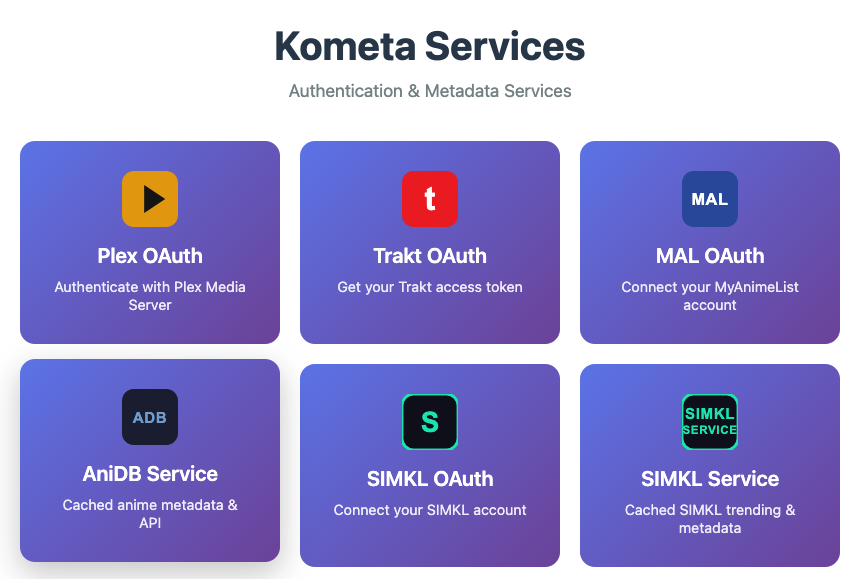
-
Click the top-level button.
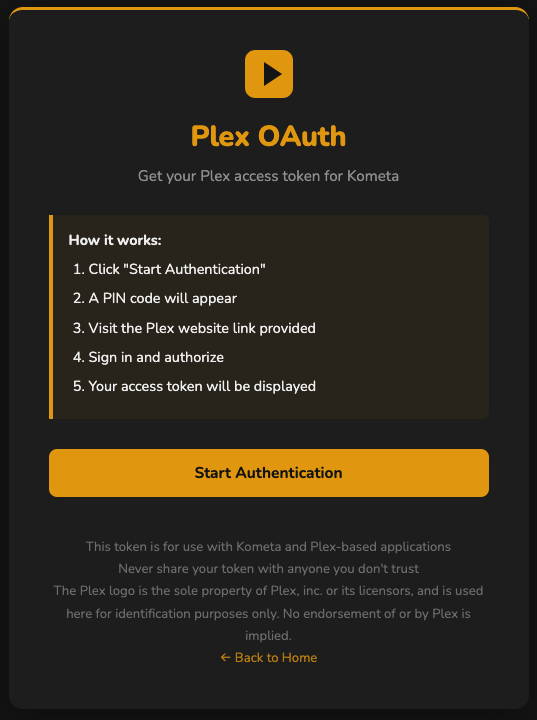
-
Click "Start Authentication". This will display a PIN and a link to start authentication. Click that link [which will open a new tab/window to Plex] and follow any instructions given by Plex:
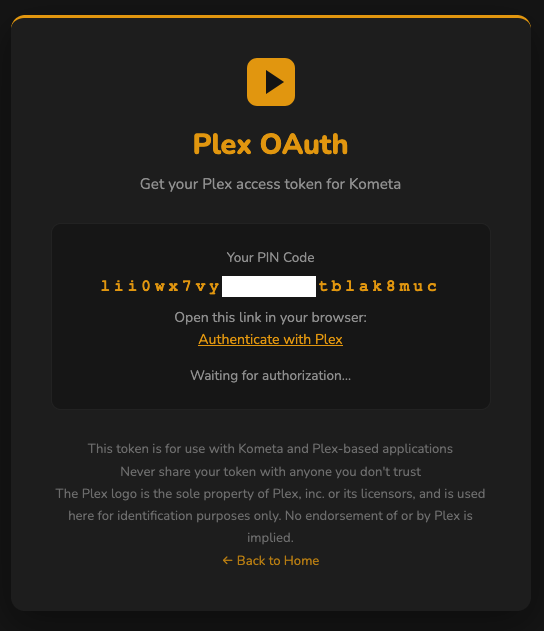
Close that window when Plex indicates it is safe to do so.
-
The utilities app will now display a Plex token and user details:
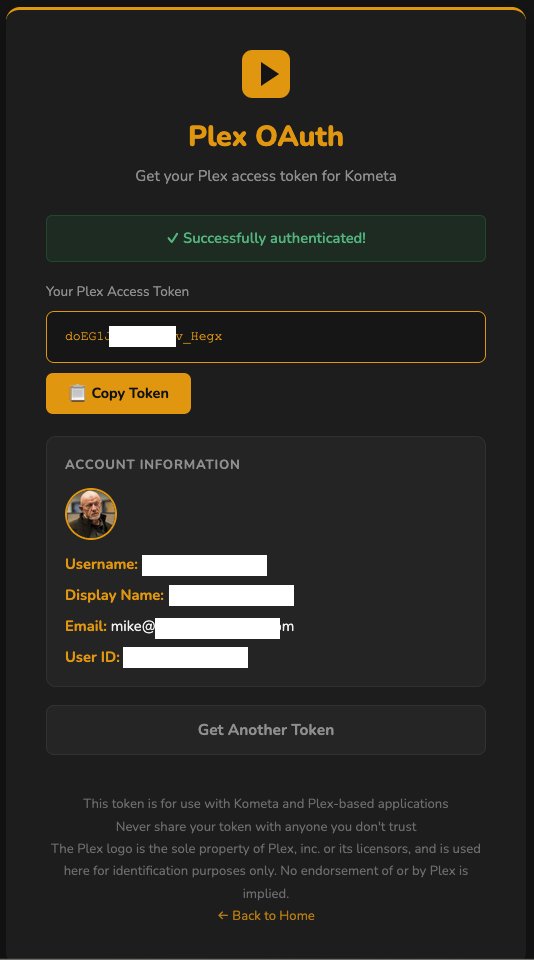
-
Copy that token to your Kometa
config.yml
-
Click the top-level button, enter your MyAnimeList client ID and Secret.
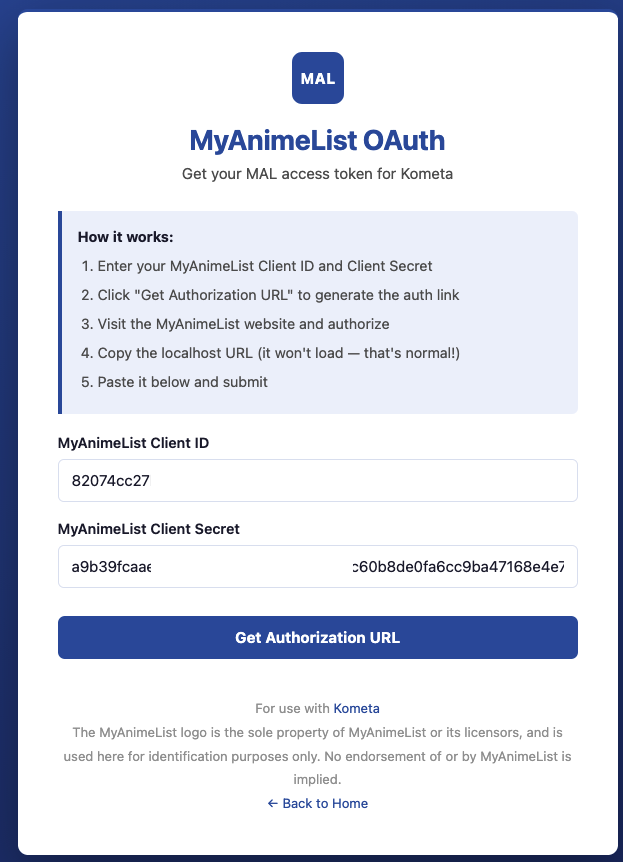
-
Click "Get Authentication URL". This will fill in the auth URL:
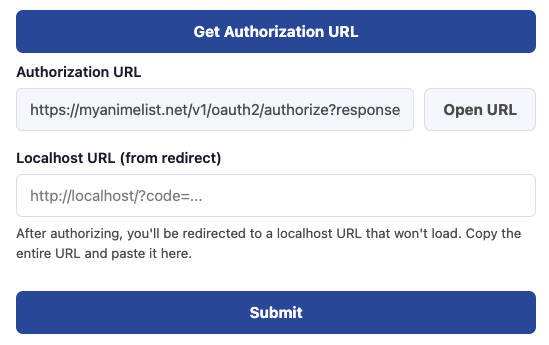
Click "Open URL" and follow any instructions given. This will take you to a localhost URL that will fail to load.
-
Paste that URL into the field and click "Submit":
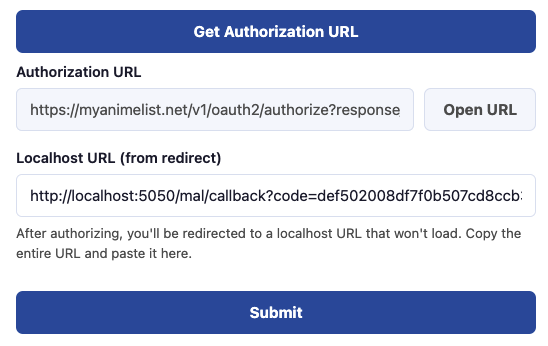
-
A Kometa MyAnimeList authentication block will be displayed.
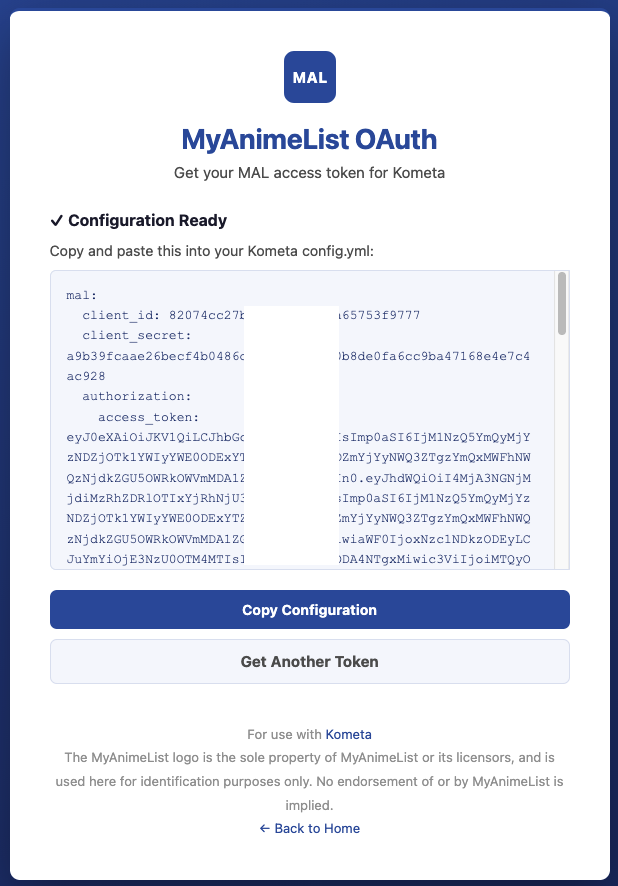
Copy that block to your Kometa
config.yml
-
Click the top-level button.
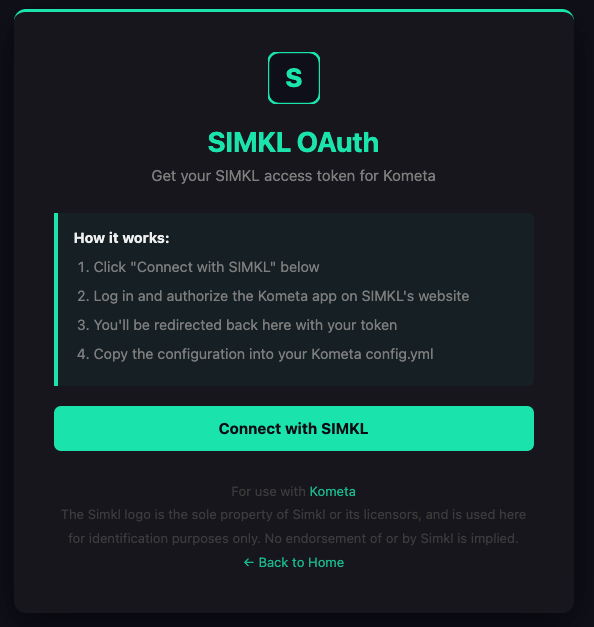
-
Click "Connect with SIMKL". Log into your SIMKL account:
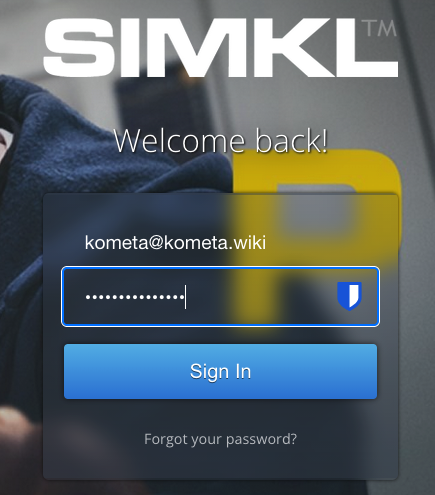
-
Click "Yes" to grant Kometa access:
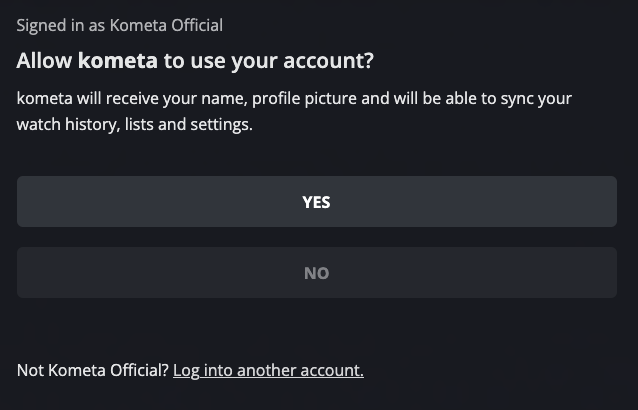
-
Wait a moment:
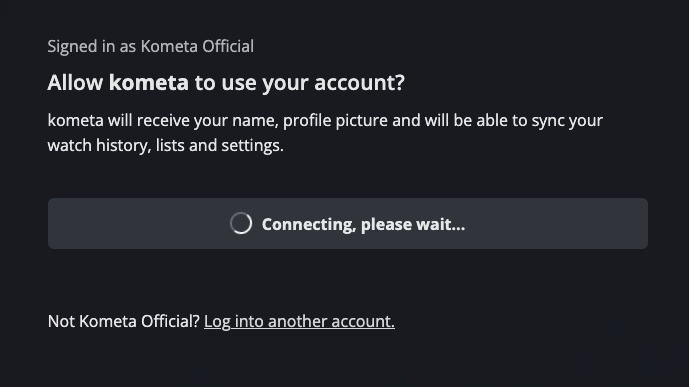
-
A Kometa SIMKL config block will be displayed.
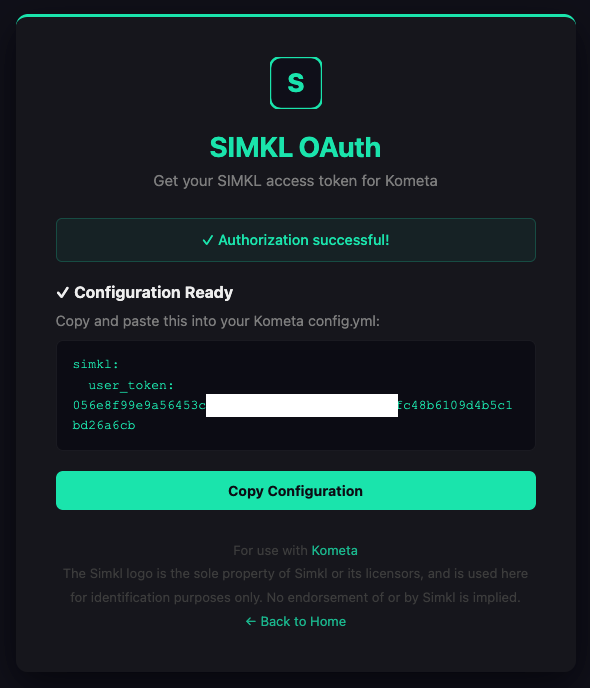
Copy that block to your Kometa
config.yml